One Bluetooth Pairing, Two Operating Systems: Fixing Windows - Ubuntu Dual-Boot Bluetooth on a Dell G15 5520

How I migrated a Windows Bluetooth pairing into Ubuntu using One Pair, BlueZ, and the Windows SYSTEM registry.
The problem: why do I have to pair my earbuds twice?
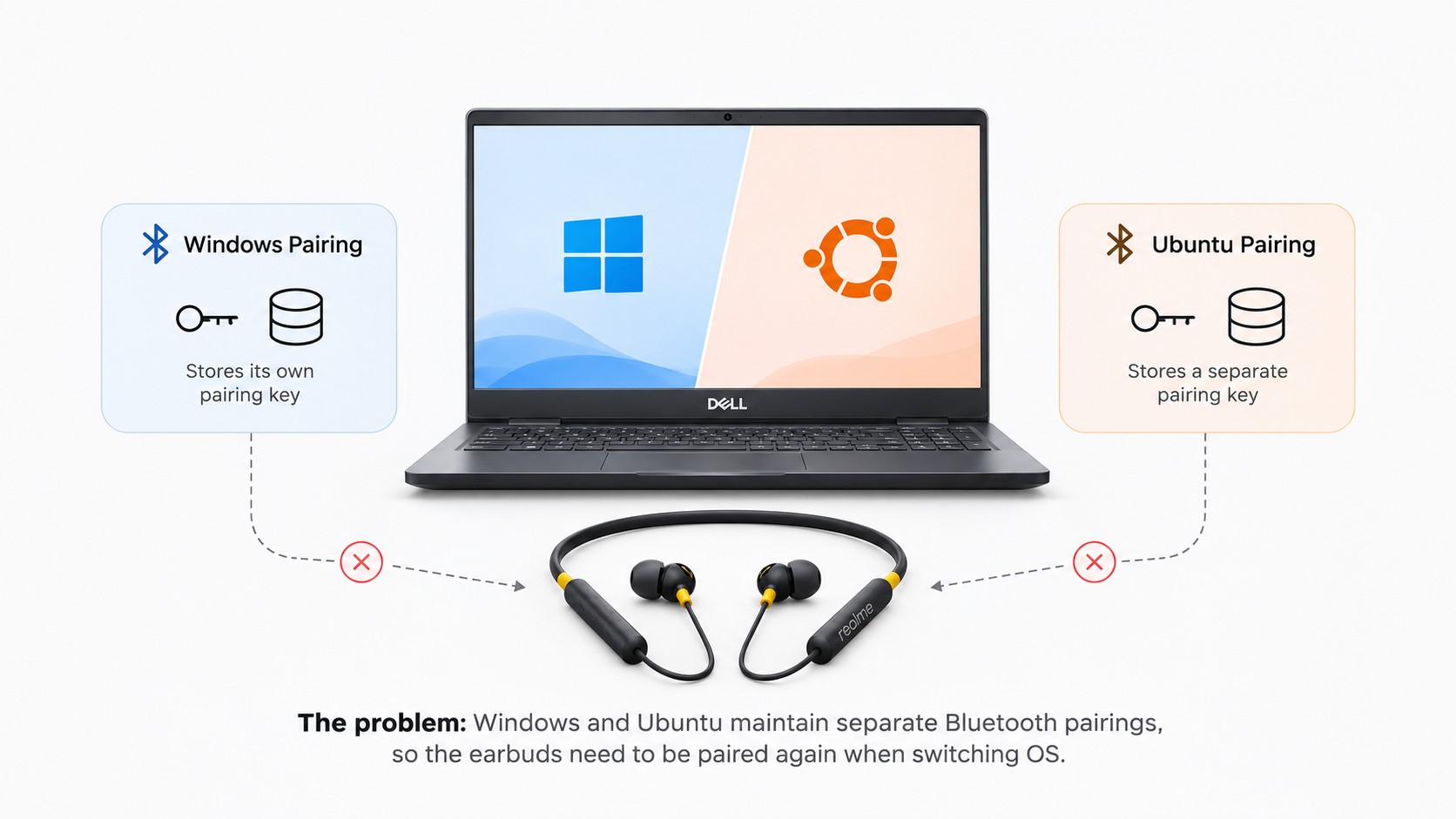
Running Windows and Linux on the same laptop is convenient, but dual-booting can introduce an irritating Bluetooth problem.
I paired my realme Buds Wireless 5 ANC with Windows on my Dell G15 5520. After rebooting into Ubuntu, the earbuds needed to be paired again. Pairing them in Ubuntu could then make Windows lose its existing connection.
The Bluetooth adapter was physically the same in both operating systems. The earbuds were the same. Yet the two operating systems behaved as though they were different computers.
The reason was not a faulty Bluetooth adapter or a problem with the earbuds. It was the way Windows and Linux maintained their Bluetooth pairing credentials.
Instead of repeatedly removing and pairing the earbuds, I wanted both operating systems to use the same Bluetooth credentials.
That led me to One Pair, an open-source project that migrates Bluetooth pairing information from Windows into Linux's BlueZ database.
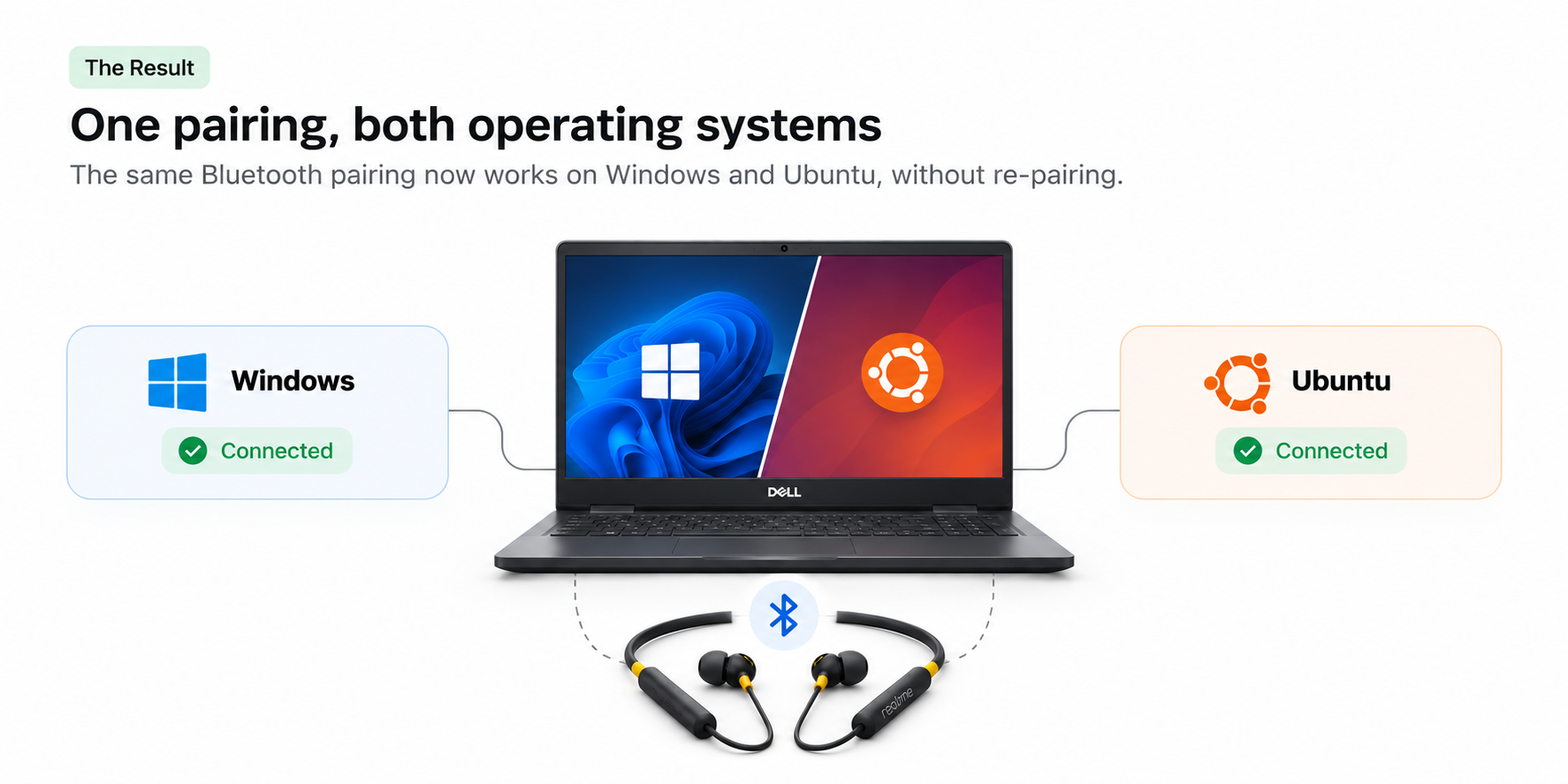
The result: I successfully connected the earbuds in Ubuntu after importing the Windows pairing, and verified that they continued to work when switching between Windows and Ubuntu.
This article documents the process, the technical details, the precautions, and the commands I used.
1. Understanding the problem
Bluetooth pairing is more than remembering a device's name and MAC address.
During pairing, the computer and the Bluetooth device establish cryptographic credentials. These credentials are subsequently used to authenticate and establish trusted connections.
Windows and Linux maintain their own Bluetooth pairing databases:
- Windows stores Bluetooth pairing information in its registry.
- Linux, when using BlueZ, stores persistent Bluetooth device information under
/var/lib/bluetooth/.
Consequently, pairing a device in Windows does not automatically make that pairing available to Ubuntu.
Why does pairing in one operating system affect the other?
For classic Bluetooth (BR/EDR), the device and host use a link key for authentication.
A dual-boot laptop uses the same physical Bluetooth adapter in both operating systems. That adapter has a Bluetooth address, which acts as the host identity from the device's perspective.
The important detail is that the earbuds do not necessarily understand that Windows and Ubuntu are two separate operating systems. They see the same Bluetooth adapter.
If one operating system establishes a new pairing, it can replace the link key stored by the earbuds. The other operating system may still have its old key, which no longer matches.
This explains why simply pairing the earbuds separately in both operating systems is not a reliable solution for classic Bluetooth devices.
The approach: pair the device in Windows, extract the resulting pairing credentials, and import them into Ubuntu so both operating systems use the same credentials.
2. Understanding the Bluetooth components
Before changing anything, it helps to understand the two storage systems involved.
Windows: the SYSTEM registry hive
Windows stores Bluetooth pairing information in its SYSTEM registry hive.
For classic Bluetooth, the relevant registry location is:
HKEY_LOCAL_MACHINE\SYSTEM\
  CurrentControlSet\Services\BTHPORT\Parameters\Keys
Under this location, Windows maintains entries associated with the Bluetooth adapter and paired devices.
Conceptually, the structure looks like this:
SYSTEM
└── CurrentControlSet
    └── Services
        └── BTHPORT
            └── Parameters
                └── Keys
                    └── <Bluetooth adapter MAC>
                        └── <paired device MAC>
For the classic Bluetooth device in this experiment, the pairing information was stored as a 16-byte binary Link Key value associated with the device MAC address.
The registry data is protected by Windows permissions. Reading the offline SYSTEM hive from Linux avoids trying to export this protected key through an ordinary Windows registry export.
Linux: BlueZ storage
Ubuntu uses BlueZ as its Bluetooth protocol stack.
BlueZ stores persistent Bluetooth information under:
/var/lib/bluetooth/
The directory structure is organised around the local adapter and remote devices:
/var/lib/bluetooth/
└── <adapter-mac>/
    ├── settings
    ├── cache/
    └── <device-mac>/
        └── info
The remote device's info file can contain sections such as:
[General]
Name=Bluetooth Device
SupportedTechnologies=BR/EDR;
Trusted=true
Blocked=false

[LinkKey]
Key=<REDACTED>
Type=4
PINLength=0
The Key is the sensitive pairing credential. It must never be published or committed to a repository.
BlueZ's documentation describes the structure of this storage and the fields used for Link Keys and other pairing information.
3. My test environment
This is the hardware and software configuration used for the experiment.
| Component | Configuration |
|---|---|
| Laptop | Dell G15 5520 |
| Operating systems | Windows + Ubuntu 26.04.1 LTS |
| Bluetooth stack on Linux | BlueZ 5.85 |
| Bluetooth adapter | Internal Dell laptop adapter |
| Bluetooth device | realme Buds Wireless 5 ANC |
| Linux kernel | 7.0.0-38-generic |
| Desktop environment | GNOME 50.1 |
| Migration utility | One Pair |
| Registry reader | chntpw |
The Bluetooth MAC addresses are intentionally omitted from the published article. They are included as placeholders in the commands so the procedure can be adapted to other machines.
4. The solution: One Pair
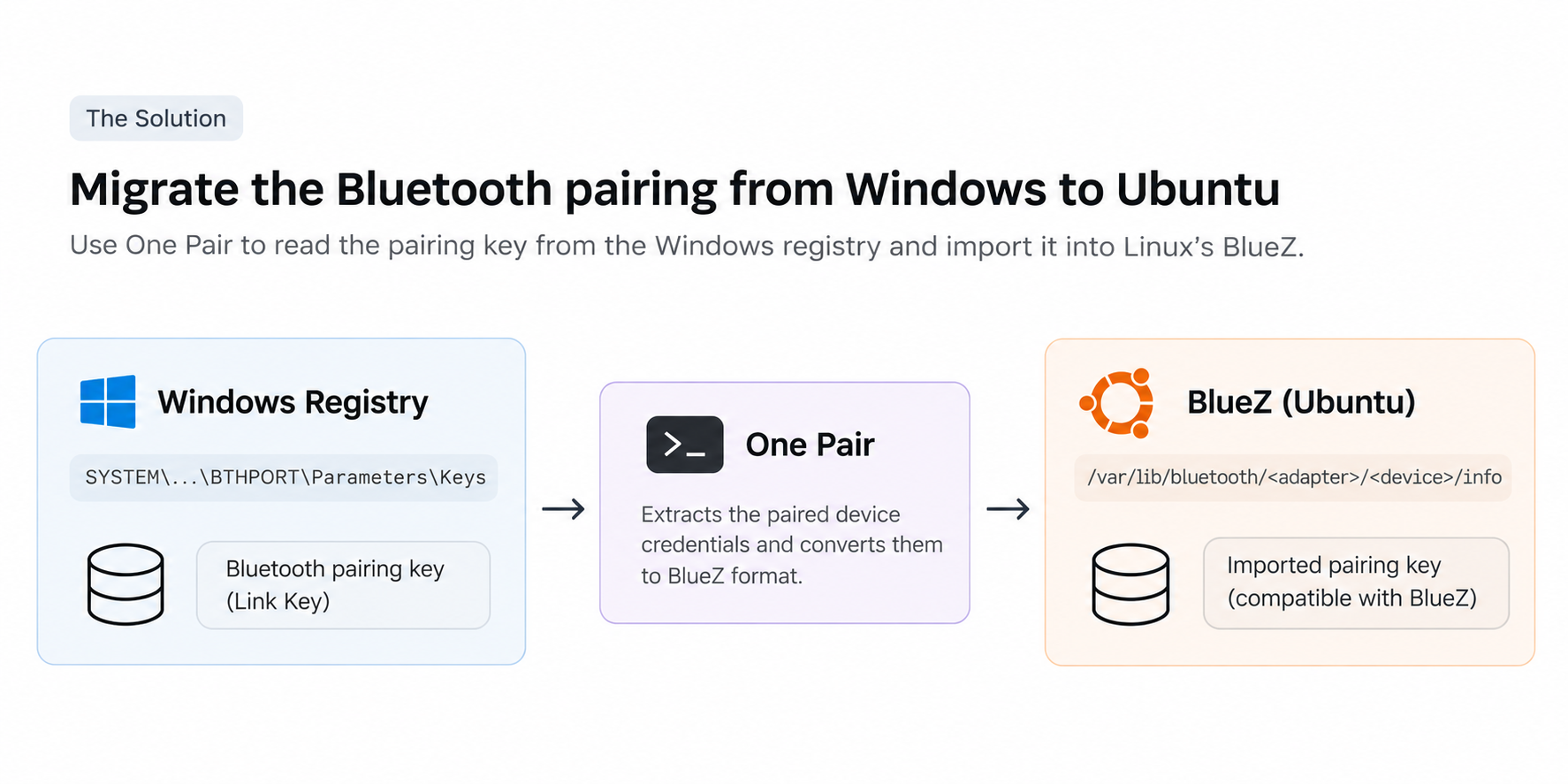
I found One Pair, a project designed specifically for sharing Bluetooth pairings between Windows and Linux in dual-boot systems.
Its basic workflow is:
- Read Bluetooth pairing credentials from the Windows registry.
- Identify the relevant adapter and paired device.
- Extract the appropriate Bluetooth key material.
- Convert it into the format expected by BlueZ.
- Write the resulting device information into
/var/lib/bluetooth/.
One Pair supports both classic Bluetooth (BR/EDR) link keys and Bluetooth Low Energy (BLE) pairing material.
For this experiment, the earbuds were identified as a classic Bluetooth BR/EDR device, so the classic Link Key migration path was used.
Why not manually copy the key?
It is possible to inspect the Windows registry and manually construct a BlueZ info file.
However, this requires understanding the registry structure, reading binary values correctly, identifying the correct adapter and device, and formatting the result as BlueZ expects.
One Pair automates those steps and provides a dry-run option. That made it a safer starting point than manually editing the Bluetooth database.
5. Step-by-step implementation
The following procedure assumes that Windows and Ubuntu are already installed on the same laptop.
Step 1: Pair the Bluetooth device in Windows
First, I removed the old pairing from both operating systems so that there would be no uncertainty about which credentials were current.
I then booted into Windows and paired the realme Buds Wireless 5 ANC normally.
At this point:
- Windows had a fresh pairing.
- Ubuntu did not have a new pairing for the earbuds.
- The earbuds had not been paired again in Ubuntu.
This order matters for classic Bluetooth devices.
One Pair's documentation specifically warns that classic Bluetooth devices should be paired in Windows last before importing the key into Linux. Pairing them in Linux afterward can replace the key stored on the device.
Step 2: Boot Ubuntu and prepare the Windows partition
After pairing in Windows, I shut Windows down fully and booted Ubuntu.
I identified the Windows partition:
lsblk -f
The Windows installation was on an NTFS partition. In my case, it was:
/dev/nvme0n1p3
I mounted it read-only:
sudo mkdir -p /mnt/windows

sudo mount -t ntfs3 -o ro \
  /dev/nvme0n1p3 \
  /mnt/windows
Verify the mount:
findmnt /mnt/windows
I also checked that the offline Windows SYSTEM hive was accessible:
test -f /mnt/windows/Windows/System32/config/SYSTEM \
  && echo "Windows SYSTEM hive found"
A read-only mount is intentional. We only need to read Windows' registry data; there is no reason to modify the Windows partition.
Step 3: Install the required tools
One Pair uses chntpw to read the offline Windows registry hive.
Install the required packages:
sudo apt update
sudo apt install git chntpw
Clone the repository:
git clone https://github.com/C6S/one-pair.git
cd one-pair
The script in the repository can be invoked through Bash even if its executable permission is not set:
bash ./import.sh
Step 4: Back up the existing Ubuntu Bluetooth database
Before modifying anything under /var/lib/bluetooth, I created a complete backup.
sudo tar -C /var/lib -czf \
  "$HOME/bluetooth-backup-$(date +%F-%H%M%S).tar.gz" \
  bluetooth
The archive was initially created by root, so I transferred ownership to my user and restricted its permissions:
sudo chown "$USER":"$(id -gn)" \
  "$HOME"/bluetooth-backup-*.tar.gz

chmod 600 "$HOME"/bluetooth-backup-*.tar.gz
This backup is important because BlueZ's database contains pairing credentials and other persistent Bluetooth information.
Keep the archive private. It contains sensitive information.
Step 5: Identify the adapter and device
Before importing anything, I checked the Bluetooth adapter and the earbuds' MAC address.
The adapter address can be inspected with:
bluetoothctl list
The device address can be inspected with:
bluetoothctl devices
For this experiment, I used placeholders below:
<ADAPTER_MAC> = your laptop's Bluetooth adapter address
<DEVICE_MAC>  = your earbuds' Bluetooth address
The adapter address must match the directory used by BlueZ under /var/lib/bluetooth/.
This is particularly important if a system has more than one Bluetooth adapter. One Pair's documentation notes that its default adapter selection uses the first MAC-named directory it finds.
Step 6: Run a dry run first
This was the most important safety check.
One Pair supports --dry-run, which previews the information it would write without modifying the Bluetooth database.
I ran:
sudo bash ./import.sh \
  --dry-run \
  --no-restart \
  --no-connect \
  --device <DEVICE_MAC> \
  /mnt/windows
The arguments mean:
| Argument | Purpose |
|---|---|
--dry-run |
Preview the changes without writing them |
--no-restart |
Do not restart the Bluetooth service |
--no-connect |
Do not attempt to connect automatically |
--device |
Restrict the import to one Bluetooth device |
/mnt/windows |
Location of the mounted Windows partition |
For my realme earbuds, the dry run identified:
- The correct local Bluetooth adapter.
- The exact remote device.
- The Windows classic Bluetooth Link Key.
- The expected BlueZ destination file.
The preview contained a [LinkKey] section with a key, a key type, and a PIN length.
I deliberately did not publish the key value.
The command also confirmed:
dry run: no changes made.
I did not proceed until the dry run identified the correct adapter and device.
Step 7: Import the pairing information
After the dry run succeeded, I ran the same command without --dry-run:
sudo bash ./import.sh \
  --no-restart \
  --no-connect \
  --device <DEVICE_MAC> \
  /mnt/windows
This imported the Windows pairing information into BlueZ.
I intentionally retained --no-restart and --no-connect so that I could verify the file before restarting the Bluetooth service.
Step 8: Verify the BlueZ device record
The generated file is located at:
/var/lib/bluetooth/<ADAPTER_MAC>/<DEVICE_MAC>/info
I inspected its non-secret fields:
sudo grep -E \
  '^\[|^(Name|SupportedTechnologies|Trusted|Blocked|Type|PINLength)=' \
  /var/lib/bluetooth/<ADAPTER_MAC>/<DEVICE_MAC>/info
This is preferable to printing the entire file because the Key= field contains sensitive material.
I also checked its permissions:
sudo stat -c '%A %U:%G %n' \
  /var/lib/bluetooth/<ADAPTER_MAC>/<DEVICE_MAC>/info
My generated file had these permissions:
-rw------- root:root
That means only root can read or write the file.
The file contained the expected sections:
[General]
Name=BT Device <DEVICE_ID>
SupportedTechnologies=BR/EDR;
Trusted=true
Blocked=false

[LinkKey]
Key=<REDACTED>
Type=4
PINLength=0
The name was generic in the imported record. BlueZ can discover additional device information when it connects.
Step 9: Restart Bluetooth
Once the record looked correct, I restarted the Bluetooth service:
sudo systemctl restart bluetooth
At this stage, I could use either the terminal or the GNOME Bluetooth interface.
I chose the graphical interface:
- Open Settings → Bluetooth.
- Make sure Bluetooth is enabled.
- Turn on the earbuds.
- Find the existing device entry.
- Click Connect.
I did not click Forget Device or initiate a fresh pairing.
The earbuds connected successfully.
That was the first confirmation that the imported Windows credentials were accepted by Ubuntu.
6. The actual test: switching between Windows and Ubuntu
A successful connection in Ubuntu alone is not enough to prove that dual-boot pairing works.
The important test is whether both operating systems can continue using the same pairing after switching back and forth.
I tested the following sequence:
| Test | Result |
|---|---|
| Pair earbuds in Windows | Successful |
| Import Windows credentials into Ubuntu | Successful |
| Connect earbuds in Ubuntu | Successful |
| Switch to Windows and use the earbuds | Successful |
| Switch back to Ubuntu and use the earbuds | Successful |
The earbuds worked across the operating-system switch without requiring another pairing operation.
This was the outcome I wanted.
It demonstrated that, for this particular classic Bluetooth device and adapter, sharing the pairing credentials between the two operating systems solved the repeated-pairing problem.
7. Why the solution works
The key idea is that the Bluetooth device and the laptop's adapter need to agree on the pairing credentials.
Windows and Ubuntu normally maintain separate copies of those credentials.
One Pair extracts the Windows credentials and places them in the format that BlueZ expects.
The resulting arrangement is:
                  Dell G15 5520
                Bluetooth Adapter
                         |
                  Same adapter MAC
                         |
              +----------+----------+
              |                     |
           Windows                Ubuntu
              |                     |
       Windows Registry        BlueZ Database
              |                     |
              +----------+----------+
                         |
                 Same Link Key
                         |
                 realme Buds
The operating systems still have separate Bluetooth stacks and separate databases. We are not synchronising the operating systems themselves.
We are making the relevant pairing credentials consistent.
BlueZ's documented storage format includes a [LinkKey] section containing the key, key type, and PIN length. One Pair generates that format from the Windows registry.
8. Important caveats and limitations
This solution worked for my hardware, but it is important not to generalise the result beyond what was tested.
Classic Bluetooth and BLE are not identical
Bluetooth Classic (BR/EDR) and Bluetooth Low Energy use different pairing mechanisms and key material.
One Pair supports both, but the registry fields and BlueZ records differ.
My successful test used the classic BR/EDR Link Key path. It should not be treated as a test of every BLE device or every Bluetooth peripheral.
Pair Windows first for classic Bluetooth
For classic Bluetooth devices, the device generally maintains one active link key for a given host identity.
If you pair the device again in Ubuntu, the key stored on the device may change. Windows could then lose its matching key.
If that happens, pair the device in Windows again and re-import the current credentials into Ubuntu.
The Bluetooth adapter matters
This method relies on both operating systems using the same physical Bluetooth adapter and adapter address.
If you switch adapters, use a USB Bluetooth dongle in one operating system, or change adapter identities, the same credentials may not work.
BlueZ storage is sensitive
Do not:
- Publish the
Key=value. - Upload the raw Windows registry hive.
- Commit Bluetooth database backups to GitHub.
- Share unredacted
.regexports. - Leave temporary copies of pairing credentials in public folders.
Treat the pairing key like a password or other authentication secret.
Directly editing BlueZ storage is not generally recommended
BlueZ documentation discourages modifying its storage directly outside the Bluetooth daemon.
That is why I used a purpose-built migration utility rather than manually constructing the record.
Always review a script before running it with sudo, and use its dry-run mode where available.
9. Troubleshooting
The earbuds still ask for pairing
Check that:
- You paired the earbuds in Windows after removing the previous pairing.
- You imported the current Windows pairing rather than an old registry entry.
- You selected the correct Windows partition.
- You selected the correct device MAC address.
- The imported file is under the correct adapter directory.
For classic Bluetooth, pairing in Ubuntu after importing the Windows key can invalidate the shared key.
br-connection-key-missing
One Pair documents this error as a possible symptom of a stale classic Bluetooth key.
The device may have been paired in Linux after the Windows pairing was created, replacing the key stored on the device.
Pair again in Windows and repeat the import.
The device appears but does not connect
Check the Bluetooth service:
systemctl status bluetooth
Inspect the device without exposing its key:
bluetoothctl info <DEVICE_MAC>
Check the BlueZ record and file permissions as shown earlier.
Do not immediately delete the Bluetooth database or repeatedly pair the device. First establish whether the imported key is current.
Restore the previous Bluetooth database
If the import causes problems, use the backup created before the migration.
First identify the exact archive:
ls -lh "$HOME"/bluetooth-backup-*.tar.gz
Stop Bluetooth:
sudo systemctl stop bluetooth
Restore the selected backup. Replace the archive name with the exact file you created:
sudo tar -C /var/lib -xzf \
  "$HOME/bluetooth-backup-YYYY-MM-DD-HHMMSS.tar.gz"
Then restart Bluetooth:
sudo systemctl start bluetooth
Restoring the backup replaces files with their archived versions, but does not necessarily remove new files that were created after the backup. For a complete rollback, inspect the affected device directory and reconcile it with the backup before proceeding.
10. Final thoughts
This was a small but satisfying Linux troubleshooting exercise.
The issue initially looked like an ordinary Bluetooth pairing problem. However, the actual cause was the separation between Windows' and Linux's pairing databases.
Instead of repeatedly pairing the same earbuds, I inspected the Windows registry, understood how BlueZ stores pairing information, and used an existing open-source tool to migrate the credentials.
The final result was simple:
Pair once in Windows. Import the pairing into Ubuntu. Use the same earbuds across both operating systems.
Tested on a Dell G15 5520 running Windows and Ubuntu 26.04.1 LTS, with realme Buds Wireless 5 ANC and BlueZ 5.85.
The successful result is specific to this hardware and pairing configuration, but the underlying approach is useful for understanding and troubleshooting Bluetooth pairing on other dual-boot Linux systems.
References
- One Pair - GitHub repository
- One Pair - README and usage instructions
- BlueZ - Settings Storage documentation
- BlueZ - Management API documentation
Test environment summary
| Item | Tested configuration |
|---|---|
| Laptop | Dell G15 5520 |
| Linux | Ubuntu 26.04.1 LTS |
| Bluetooth stack | BlueZ 5.85 |
| Device | realme Buds Wireless 5 ANC |
| Migration utility | One Pair |
| Pairing type tested | BR/EDR |
| Result | Successful connection across Windows and Ubuntu |
This is a record of an actual troubleshooting process. Commands and identifying addresses have been generalised for publication; the real pairing key and private backup files have intentionally been excluded.
Comments
Join the discussionNo comments yet. Be the first to comment.
